Webflow MCP 2.0 + Cursor: what actually changes
The Webflow plugin for Cursor was already useful for managing CMS content and running audits from the editor. With Webflow MCP 2.0, the scope expands significantly: Cursor can now build and modify a large part of a Webflow site without keeping the Designer open.
Updated August 2026: MCP 2.0 gives the agent access to elements, components, styles, variables, assets, pages, custom code, forms, sitemap controls, Agent Instructions, and Webflow Analyze data. The Bridge App is no longer required for most of these operations.
For a Webflow developer, that is probably the most important change: Cursor is no longer just a place to write code around Webflow. It can now operate directly on the production system.
Why MCP 2.0 changes the Cursor workflow
The Model Context Protocol allows Cursor to use external tools from a conversation. Webflow exposes its APIs through an official MCP server, while the Cursor plugin simplifies installation and authentication.
In the earlier workflow, visual operations often depended on an active Designer session through the Bridge App. With MCP 2.0, most actions involving elements, components, styles, and variables are now independent of the Designer.
This means the agent can work across multiple pages, and even multiple authorized sites, without being limited by whatever happens to be open in the browser.
Installing Webflow MCP in Cursor
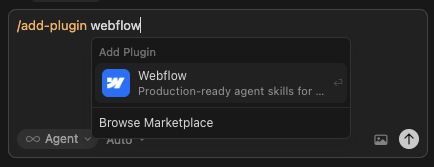
The easiest method is to use the official Webflow plugin from the Cursor Marketplace. After installation, the first use triggers Webflow OAuth authentication and lets you choose which sites and workspace Cursor can access.
You can also configure the server manually in .cursor/mcp.json using the official URL https://mcp.webflow.com/mcp.
A simple first test:
“List all the collections on my Webflow site and show me their fields.”
1. Build directly in Webflow from Cursor
MCP 2.0 allows Cursor to query and modify a page’s element tree. The agent can create sections, containers, grids, text, links, images, forms, and other supported elements, then organize and style them.
It can also build elements from HTML and CSS or use a structured schema to generate a complete element hierarchy.
This is a major improvement for prototyping workflows: a prompt can produce a real Webflow structure that reuses existing styles, rather than a standalone HTML snippet that still needs to be recreated manually in the Designer.
2. Create and maintain components
Cursor can create Webflow components, manage their instances, and work with props, variants, slots, and metadata. It can also connect certain components to CMS data.
One particularly effective use case is to provide a screenshot as a reference and ask the agent to build a component using the site’s existing design system.
The visual snapshot used to verify the final result still requires the Designer and Bridge App, but the component construction itself can happen without an active Designer session.
3. Control a design system with Webflow variables
Cursor can read variable collections, create or rename variables, manage modes, and update the values used across the site. It can also work with classes and combo classes, including CSS properties across breakpoints.
In practice, you can ask it to audit colors, spacing, or typography sizes, identify inconsistencies, and propose a refactor based on the tokens already in the project.
For a Client-First site or a well-structured design system, this is much more useful than simple CSS generation: the agent understands the system and can evolve it.
4. CMS, pages, assets, and custom code
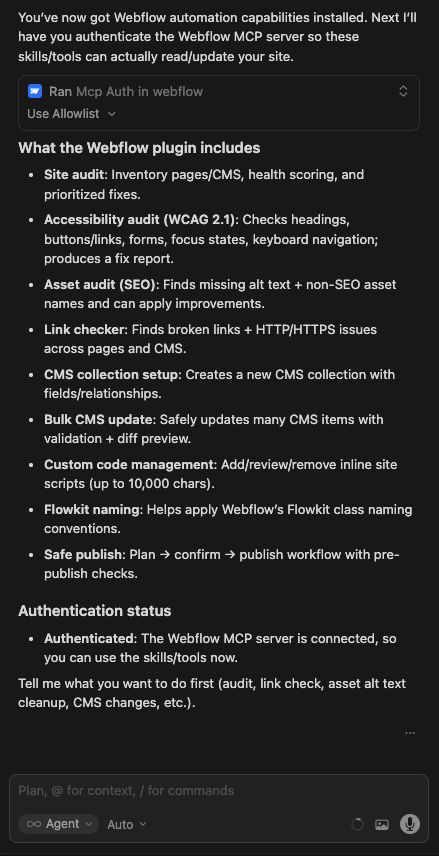
The CMS remains one of the strongest use cases: bulk updates, collection creation, field checks, publishing and unpublishing items, data cleanup, and content preparation.
MCP 2.0 also adds or expands several operations that matter to developers:
- create and update pages;
- manage schema markup and selected SEO settings;
- organize assets and folders;
- compress images to WebP or AVIF;
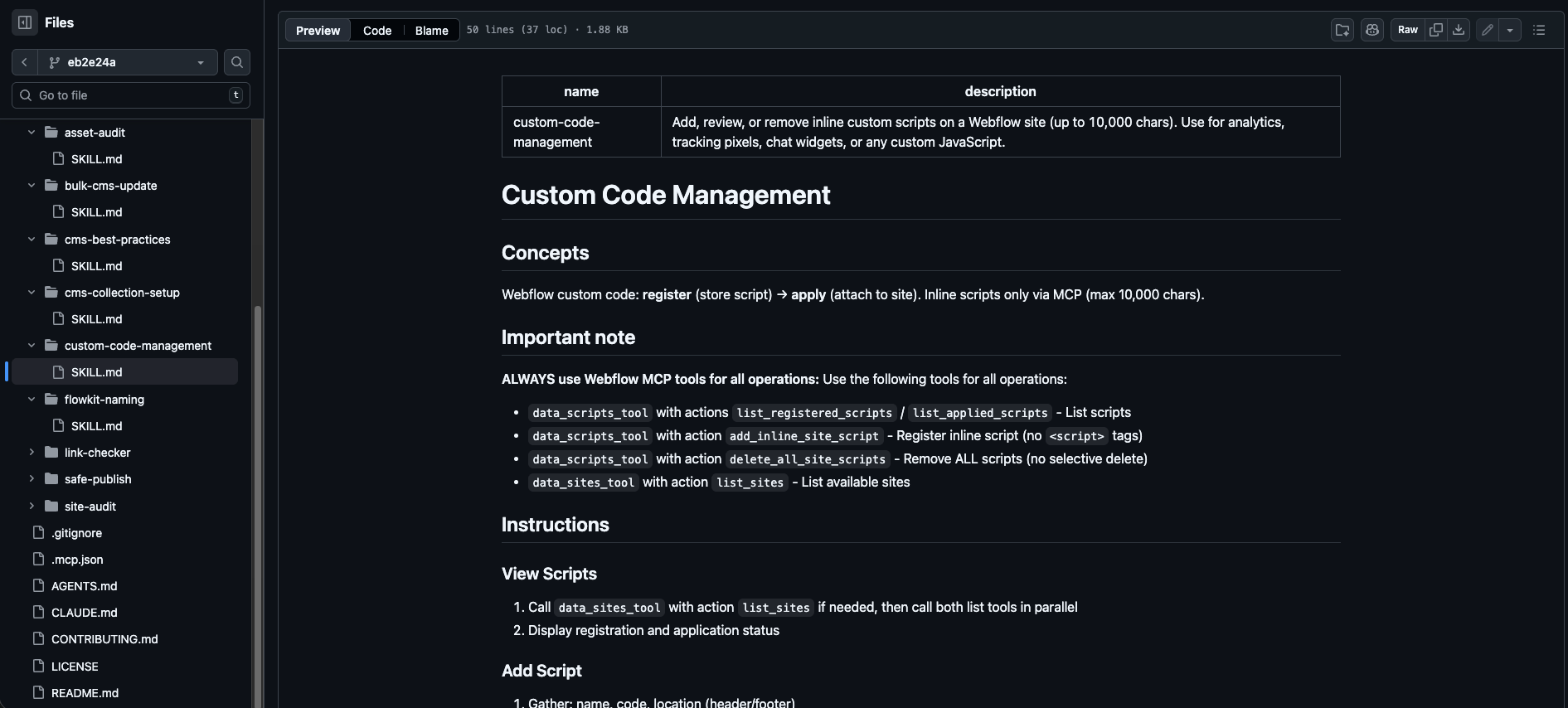
- read and write site-level or page-level head/footer code;
- manage registered scripts;
- manage uploaded custom font files;
- read and update sitemap inclusion.
5. Query Webflow Analyze from Cursor
For sites using Webflow Analyze, Cursor can now query traffic data directly in the conversation: sessions, users, pageviews, top pages, sources, engagement events, and time on page.
The workflow becomes particularly interesting when analysis and execution are combined:
“Identify pages with high traffic but low average time on page, review their structure, and propose three changes you can apply in Webflow.”
The same agent can move from data to diagnosis, and then from diagnosis to action.
6. Agent Instructions: give Cursor persistent rules
Agent Instructions let you store site-specific rules and skills in Webflow. Rules provide persistent context, while skills describe more specialized workflows.
For example, you can instruct Cursor to:
- always reuse existing variables;
- follow a specific naming convention;
- reuse an existing component before creating a new one;
- ask for confirmation before publishing;
- follow a defined structure for new sections;
- respect editorial guidelines for CMS content.
These instructions can reference the site’s actual components, variables, styles, pages, collections, and locales. That makes the agent’s behavior much more consistent on long-running projects.
7. Branches, permissions, and auditing
MCP 2.0 respects the roles and permissions defined in Webflow. If a user cannot perform an action or access part of a site, the agent does not gain that permission either.
Agents can also work with page branches where that feature is available, allowing changes to be isolated before they are merged into the main site. MCP actions also fit into Webflow’s activity and audit model.
For production workflows, this governance matters more than raw speed: it makes automation possible without removing the project’s existing safeguards.
What is the Bridge App still used for?
It is still needed for tasks that depend on live visual context or the current canvas state:
- capturing a visual snapshot;
- reading or selecting the currently active element;
- navigating the canvas or component views;
- reading the current page, mode, branch, or breakpoints;
- handling an ambiguous prompt such as “change this heading” that refers to the visible element.
For most other operations, the Designer does not need to be open.
Webflow skills
Webflow continues to provide ready-made skills for common workflows such as bulk CMS updates, collection setup, and audits. Skills combine multiple MCP tools, add validation, and can present a preview of proposed changes before execution.
With MCP 2.0, these skills can orchestrate a much broader set of capabilities. It is important to keep them updated because some tool names and actions moved between earlier versions and MCP 2.0/2.0.1.
Useful prompts in Cursor
- “Analyze the site variables and replace isolated color values with the closest existing tokens.”
- “Create an FAQ component with question, answer, and a compact variant.”
- “Find pages without a meta description and prepare a correction based on their content.”
- “Check the heaviest assets and compress the ones that can safely be converted to AVIF.”
- “Read Analyze data from the last 30 days and identify the pages that should be optimized first.”
- “Add a Webflow rule stating that every new section must use the existing spacing variables.”
Current limitations
- Interactions IX3 still cannot be created or edited through MCP.
- Snapshots and canvas-related operations still require the Bridge App.
- Creating new localized CMS items in a secondary language is not yet supported.
- Each MCP authorization is tied to one workspace, so you need to re-authenticate to switch.
- Some capabilities depend on the site plan or enabled features, for example Webflow Analyze.
Is MCP 2.0 free?
Webflow states that MCP 2.0 is available to all users at no additional cost. The agent can, however, only use features that the site already has access to. For example, Analyze queries require Webflow Analyze to be available on that site.
The official Cursor setup uses OAuth, so you do not need to generate a Webflow API key manually to use the plugin.
What actually changes day to day
The main benefit is no longer just saving a few minutes on CMS work. MCP 2.0 lets you hand Cursor more complete workflows: audit a design system, create a component, update multiple pages, inspect performance data, and apply changes that follow the site’s rules.
For a Webflow developer, Cursor becomes a real control surface: code, CMS content, site structure, and a large part of the design system can now be managed from the same conversation.
FAQ
What changes with Webflow MCP 2.0 in Cursor?
MCP 2.0 lets Cursor work directly with elements, components, styles, variables, pages, assets, custom code, sitemap controls, and Webflow Analyze data. Most of these operations no longer require an active Designer session.
Do you still need the Bridge App with Cursor?
Only for tasks tied to live visual context or the current canvas, such as snapshots, the selected element, Designer navigation, the current page or mode, and breakpoints. CMS, components, styles, variables, pages, assets, and analytics generally work without the Designer open.
Can Cursor create components and modify the Webflow design system?
Yes. MCP 2.0 lets Cursor create and modify components, manage props, variants, and slots, work with classes and combo classes, and read or update design system variables. Interactions IX3 are still outside the MCP scope.
Does MCP 2.0 respect Webflow permissions?
Yes. The agent acts with the roles and permissions of the user who authorized it. Webflow also applies its activity and audit mechanisms to MCP actions, making changes on production sites easier to trace.
Do you need an API key or a specific plan for Webflow MCP 2.0 in Cursor?
The official Cursor plugin uses OAuth, so there is no API key to configure manually. Webflow states that MCP 2.0 is available at no additional cost. Some capabilities, such as Webflow Analyze, still depend on the features enabled for the site.